
What Is TiviMate IPTV Player?
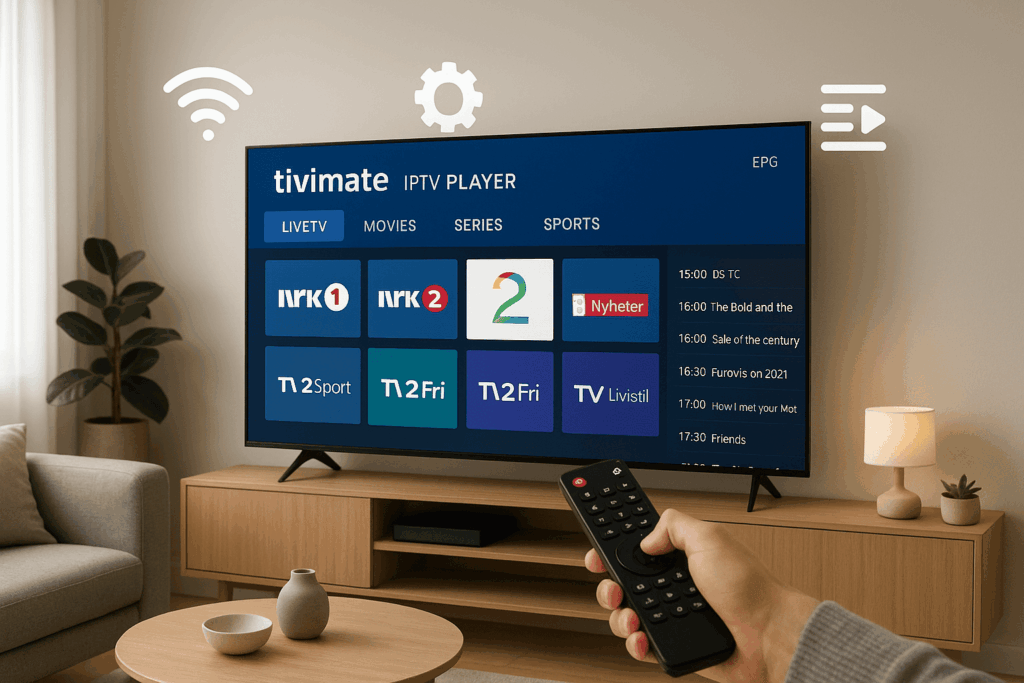
TiviMate IPTV Player is a popular IPTV application designed for Android TV, Fire TV Stick, and Android TV boxes that allows users to stream live TV, movies, and series using their own IPTV playlist. The app does not include channels by itself — instead, it acts as a powerful and modern interface where users can add an M3U playlist or Xtream Codes login provided by their IPTV service.
TiviMate is well-known for its smooth navigation, clean layout, and TV-friendly design that feels similar to a traditional cable or satellite menu. Features such as EPG (Electronic Program Guide), category organisation, favourites, multiple playlist support, and customizable viewing options make it one of the most preferred IPTV players among users seeking a professional and stable streaming experience.
Whether you are new to IPTV or already familiar with it, TiviMate offers flexibility, speed, and a polished interface — which is why it has become one of the most searched and widely used IPTV players worldwide.
2: Which Devices Support TiviMate IPTV Player?
TiviMate IPTV Player is built specifically for Android-based platforms, which makes it compatible with a wide range of streaming devices. Because the app is optimized for remote-controlled navigation rather than touch screens, it works best on televisions and media players that use Android TV OS or Amazon Fire OS. Users choose TiviMate because it delivers a smooth interface, fast channel switching, and full EPG support on devices where many other IPTV apps feel slow or limited.
Below is a detailed overview of compatible and non-compatible devices:
✅ Supported Devices
These devices run TiviMate smoothly and offer the full feature experience:
1. Android TV Smart TVs
Brands such as:
-
Sony Bravia
-
Philips Android TV
-
TCL Android TV
-
Hisense (Android models)
These TVs have the Google Play Store built-in, allowing users to download TiviMate directly without sideloading.
2. Amazon Firestick and Fire TV
-
Fire TV Stick
-
Fire TV Stick 4K / 4K Max
-
Fire TV Cube
TiviMate is not available in the Amazon App Store, but it can be installed using an APK downloader, making Firestick one of the most popular devices for IPTV users.
3. Android TV Boxes and Media Players
Including:
-
Xiaomi Mi Box
-
Formuler devices (Z8, Z10, GTV, etc.)
-
Generic Android TV boxes
These devices offer strong performance and extra storage, which benefits users with large playlists.
4. Nvidia Shield TV
Known for:
-
fastest processing power
-
best video performance
-
excellent WiFi stability
Many advanced IPTV users consider it the top device for TiviMate.
5. Android Phones and Tablets
While originally designed for TV screens, TiviMate can also run on mobile Android devices, though layout and navigation feel more optimized for TV remotes.
❌ Devices Not Supported Natively
Some operating systems do not allow installation:
-
Samsung Smart TV (Tizen OS)
-
LG Smart TV (WebOS)
-
Apple TV (tvOS)
-
iPhone and iPad (iOS)
-
Windows PC
-
MacOS
Users with these devices typically connect an Android TV box or Firestick to their TV to use TiviMate.
✅ Recommended Performance Requirements
To ensure smooth playback and fast channel switching, users should ideally have:
-
Minimum 2GB RAM (4GB preferred)
-
Stable high-speed WiFi (5GHz recommended)
-
Updated Android firmware
-
Good IPTV playlist source
-
Ethernet connection for large screens (optional but ideal)
⭐ Why Device Compatibility Matters
Using TiviMate on the right device provides:
-
fewer app crashes
-
faster EPG loading
-
better video decoding
-
improved remote navigation
-
smoother channel zapping
This is why many IPTV users upgrade from Smart TV apps to Android-based systems.
3: How to Install TiviMate IPTV Player (Step-by-Step Guide)
Installing TiviMate IPTV Player is simple, but the exact method depends on the device you’re using. Below is a clear, detailed guide for the two most popular platforms: Android TV and Amazon Firestick. This section ensures even beginners can follow every step without confusion.
⭐ How to Install TiviMate on Android TV (Official Method)
Android TV devices like Sony, Philips, TCL, and Nvidia Shield allow you to install TiviMate directly from the Google Play Store.
Step-by-step guide:
-
Turn on your Android TV and connect it to the internet.
-
Open the Google Play Store from the home screen.
-
In the search bar, type “TiviMate IPTV Player.”
-
Select the app from the search results.
-
Click Install.
-
Once installed, open the app from your app list.
-
You will now see a welcome screen asking you to add a playlist.
This is the easiest and most stable installation method.
⭐ How to Install TiviMate on Amazon Firestick (Sideload Method)
TiviMate is not available in the Amazon App Store, so Firestick users need to install it using an APK downloader.
Step 1 — Enable Apps from Unknown Sources
-
Go to Settings.
-
Select My Fire TV or Device & Software.
-
Click Developer Options.
-
Enable:
-
ADB Debugging
-
Apps from Unknown Sources
-
Step 2 — Install Downloader App
-
Go back to the Firestick home screen.
-
Select the Search icon.
-
Type “Downloader.”
-
Choose the app (orange logo) and click Install.
Step 3 — Download the TiviMate APK
-
Open the Downloader app.
-
In the URL field, type a trusted APK source (e.g., official developer mirror link).
-
Press Go.
-
The file will download automatically.
-
Select Install when prompted.
-
When finished, click Done.
-
Delete the APK file to save storage (recommended).
Step 4 — Open TiviMate
-
Go to Your Apps & Channels.
-
Locate TiviMate IPTV Player.
-
Open it and prepare to add your IPTV playlist.
⭐ Important Notes for Firestick Users
-
Make sure you only download APKs from trusted sources.
-
Avoid free “modded” versions — they are unsafe and can cause app crashes.
-
Firestick performance is best on Firestick 4K & 4K Max.
⭐ Recommended for Best Performance
Regardless of your device, follow these tips:
-
Connect via 5GHz WiFi or Ethernet for stable speeds.
-
Keep your device updated.
-
Restart your device once per week.
-
Utilise a reputable IPTV playlist provider to minimise buffering issues.
4: How to Add Your IPTV Playlist to TiviMate (M3U & Xtream Codes Setup)

After installing TiviMate, the next step is to add your IPTV playlist. TiviMate supports all major formats, including M3U URL, Xtream Codes API, and stalker portals (depending on the version). The setup process is simple, but entering the details correctly is important for the app to load your channels and EPG properly.
Below is a complete step-by-step guide.
⭐ Adding an M3U Playlist in TiviMate
This is the most common method used by IPTV providers.
Step 1 — Open TiviMate
Launch the app from your device’s Apps menu.
If it’s your first time using it, you will see the “Add Playlist” screen.
Step 2 — Select Add Playlist
-
Click Add Playlist
-
Choose the option “Enter URL”
Step 3 — Enter Your M3U URL
Your IPTV provider should give you an M3U link (usually something like this):
Enter the link exactly as provided:
-
Use capital letters if included
-
Avoid extra spaces
-
Double-check the username and password
Step 4 — Wait for Channels to Load
TiviMate will:
-
Download your playlist
-
Import channels
-
Assign categories (Live TV, Movies, Series)
This usually takes 5–20 seconds, depending on playlist size.
Step 5 — Playlist Added
You will now see your channel list in the TiviMate interface.
⭐ Adding IPTV via Xtream Codes API
Many IPTV services offer an Xtream Codes login, which loads faster and gives better EPG accuracy.
Step 1 — Go to Add Playlist
Choose:
→ Xtream Codes Login
Step 2 — Enter Your Details
You will need:
-
Server URL
-
Username
-
Password
Example format:
-
Server:
http://example.com -
Username:
abc123 -
Password:
xyz456
Step 3 — Load Playlist
TiviMate will automatically:
-
Sync live channels
-
Load VOD categories
-
Import EPG (if available)
Xtream Codes users often report better indexing and fewer duplicates.
⭐ (Optional) Add EPG URL Manually
If your provider gives you a separate EPG link, you can add it manually.
How:
-
Go to Settings
-
Choose TV Guide
-
Select EPG Sources
-
Click Add Source
-
Enter your EPG URL
Then assign the EPG to the correct playlist.
⭐ Common Mistakes to Avoid
❌ Wrong username or password
❌ Entering spaces before or after the URL
❌ Using expired or broken playlist links
❌ Typing http instead of https (or vice versa)
❌ Not clearing old playlists when switching providers
If the playlist doesn’t load, 90% of the time it’s a formatting or login issue.
⭐ Tips for a Better TiviMate Experience
-
Use Xtream Codes login if available — it’s more stable.
-
Delete old playlists regularly to avoid slow loading.
-
Keep playlist names simple (e.g., “Main IPTV”).
-
Enable channel logos for a cleaner interface.
-
Refresh playlist daily for updated channels and EPG.
5: Best TiviMate Features Explained (Free vs Premium Comparison)
TiviMate is known for offering one of the most advanced IPTV interfaces available on Android devices. Whether you use the free version or upgrade to Premium, the app provides a smooth, cable-like viewing experience with fast channel switching and powerful playlist management tools.
Below is a complete breakdown of the key features and what you get with both versions.
⭐ TiviMate Free Version – Key Features
The free version is simple but still functional. It’s ideal for users who want to try the app before upgrading.
Included Features:
-
Add one playlist
-
Standard channel list view
-
Basic EPG (TV Guide) support
-
Categories for Live TV, Movies, and Series
-
Fast channel zapping
-
Supports M3U & Xtream Codes
-
Clean and easy-to-navigate interface
Limitations of the Free Version:
-
No ability to add multiple playlists
-
No advanced EPG customization
-
No favorites backup
-
No multi-device syncing
-
No parental control
-
Limited sorting and filtering options
The free version is great for testing, but most users quickly upgrade to unlock the full experience.
⭐ TiviMate Premium – Complete Feature Set
TiviMate Premium unlocks all the features that serious IPTV users want. It is offered as a lifetime subscription for a small one-time fee (per household).
Here’s everything you get:
🔥 1. Multiple Playlists Support
You can add several IPTV playlists and switch between them easily.
Perfect for users testing different providers.
🔥 2. Scheduled Recording
Record live TV directly from the app (device storage required).
You can also schedule recordings by:
-
channel
-
date
-
start & end time
🔥 3. Multi-Device Sync
Your settings, favorites, and channel groups sync across all your devices using a TiviMate account.
🔥 4. Advanced EPG (TV Guide) Options
-
Add external EPG URLs
-
Fix mismatched channels
-
Change guide update frequency
-
Multiple EPG sources
This gives you a more accurate and detailed TV guide.
🔥 5. Favorites & Custom Channel Groups
Organize your playlist your way:
-
Create your own channel groups
-
Move channels to custom categories
-
Hide unwanted categories
-
Mark channels as favorites
This makes large playlists far easier to manage.
🔥 6. Improved Interface Customization
Premium users can personalize:
-
Channel list layout
-
TV guide style
-
Colors and themes
-
Grid or list view options
-
Logo sizes
-
Playback settings
🔥 7. Auto-Update Playlist
Premium refreshes your playlist automatically, ensuring:
-
new channels appear
-
broken links are removed
-
EPG stays updated
🔥 8. Catch-Up & VOD Enhancements
If your provider supports catch-up or VOD:
-
catch-up will appear in the TV guide
-
VOD categories load faster
-
multi-episode series are grouped more cleanly
⭐ Free vs Premium – Quick Comparison Table
| Feature | Free Version | Premium Version |
|---|---|---|
| Add IPTV Playlist | ✔ 1 playlist | ✔ Unlimited |
| EPG (TV Guide) | Basic | Advanced + external sources |
| Favorites | Basic | Sync across devices |
| Recording | ✘ | ✔ Scheduled recordings |
| Interface Customization | Limited | Full customization |
| Multi-device Use | ✘ | ✔ With account |
| Playlist Auto-Update | Limited | ✔ Full auto-sync |
| VOD Improvements | Basic | Enhanced |
⭐ Is TiviMate Premium Worth It?
For most IPTV users: Yes — absolutely.
If you use IPTV daily or have a large playlist, Premium transforms the app into a complete IPTV hub with powerful control, better organization, and a much smoother user experience.
6: How to Customize TiviMate IPTV Player for the Best Viewing Experience
Once your playlist is added, the real power of the TiviMate IPTV Player comes from its customization options. TiviMate allows users to tailor the interface, organize channels, improve picture quality, and optimize the EPG for a smoother and more enjoyable IPTV experience. These settings help you get the most out of the TiviMate IPTV Player, especially if you have a large playlist or multiple categories.
Below are the most important settings to adjust for maximum performance.
⭐ 1. Optimize Playback Settings
The TiviMate IPTV Player includes several video options that can improve streaming stability.
Recommended adjustments:
-
Open Settings → Playback
-
Enable Hardware Decoder for smoother video
-
Set Buffer Size to Medium or Large if you experience freezing
-
Turn on “Auto Frame Rate” for smart TVs that support it
-
Enable Keep Playback if you want TiviMate to resume automatically
These settings help the TiviMate IPTV Player deliver faster and smoother channel switching.
⭐ 2. Customize the Channel List
TiviMate is known for its advanced channel organization. With a large IPTV playlist, customizing your channel groups makes the TiviMate IPTV Player easier to navigate.
Try these:
-
Hide unwanted categories
-
Create custom channel groups
-
Add channels to Favorites
-
Reorder channels by:
-
A–Z
-
Recently viewed
-
Category order
-
This is especially helpful for playlists with thousands of channels.
⭐ 3. Improve EPG (TV Guide) Accuracy
A powerful TV guide is one of the main strengths of the TiviMate IPTV Player.
Steps:
-
Go to Settings → TV Guide
-
Select EPG Sources
-
Add or assign your EPG URL
-
Match EPG channels with playlist channels
-
Set EPG to update automatically
If your provider supports EPG, TiviMate will show:
-
full 7-day schedule
-
program details
-
upcoming shows
-
catch-up if activated
A well-configured EPG makes the TiviMate IPTV Player feel like a professional cable TV interface.
⭐ 4. Adjust the User Interface
The interface customization is one of the most loved features of TiviMate IPTV Player.
Recommended tweaks:
-
Choose Grid View or List View depending on preference
-
Change theme to Light, Dark, or Transparent
-
Adjust channel logo sizes
-
Enable large thumbnails for VOD
-
Turn on Channel Preview Window
These options make the TiviMate IPTV Player more personalized and visually appealing.
⭐ 5. Manage Multiple Playlists (Premium)
If you use TiviMate Premium, you can add multiple playlists and combine them into one unified interface.
Useful actions:
-
Merge playlists
-
Rename playlists
-
Sync playlists across devices
-
Auto-update all playlists daily
This helps the TiviMate IPTV Player stay organized even with several IPTV sources.
⭐ 6. Set Parental Controls
To block certain content or channels:
-
Go to Settings
-
Open Parental Controls
-
Create a PIN
-
Lock categories or specific channels
This feature makes the TiviMate IPTV Player suitable for family use.
⭐ 7. Improve App Performance
A few simple settings can boost the speed of the TiviMate IPTV Player:
-
Clear old playlists
-
Restart your device weekly
-
Reduce channel groups
-
Disable unused playlist features
-
Use 5GHz WiFi for faster loading
These optimizations keep the TiviMate IPTV Player running smoothly with minimal buffering.
⭐ Final Tips for the Best TiviMate Experience
To get maximum performance from the TiviMate IPTV Player:
-
Use a reliable IPTV provider
-
Always keep your playlist updated
-
Refresh EPG daily
-
Adjust the buffering settings
-
Use Premium for advanced features
7: Troubleshooting TiviMate IPTV Player (Common Problems & Fixes)
Although the TiviMate IPTV Player is one of the most stable and reliable IPTV apps available, users may occasionally experience issues such as buffering, EPG errors, or playlist loading problems. Most of these issues have simple solutions. Below is a complete troubleshooting guide to help you fix the most common problems quickly.
⭐ 1. Playlist Not Loading in TiviMate IPTV Player
If your channels fail to load or TiviMate shows an empty playlist:
Possible Causes
-
Wrong username/password
-
Incorrect M3U or Xtream Codes URL
-
Expired IPTV subscription
-
Extra spaces pasted into the link
-
Server temporarily offline
How to Fix It
-
Double-check the M3U or API link
-
Re-enter your Xtream Codes details
-
Remove old playlists and add again
-
Restart your device
-
Test your playlist on another device to confirm it’s active
If the playlist works elsewhere, the issue is inside the TiviMate IPTV Player, not the IPTV provider.
⭐ 2. EPG (TV Guide) Not Working
This is one of the most frequent issues.
Possible Causes
-
No EPG source assigned
-
Incorrect EPG URL
-
Playlist doesn’t include EPG
-
Outdated EPG data in storage
How to Fix It
-
Go to Settings → TV Guide → EPG Sources
-
Add your EPG URL again
-
Assign the EPG to your playlist
-
Clear cache or refresh EPG data
A correct EPG source will make the TiviMate IPTV Player show schedules for all channels.
⭐ 3. Buffering or Freezing While Watching
Buffering is usually related to internet or provider issues—not TiviMate itself.
Possible Causes
-
Slow internet speed
-
Weak WiFi signal
-
Overloaded IPTV server
-
Using outdated device
-
Playlist with unstable streams
How to Fix It
-
Switch to 5GHz WiFi instead of 2.4GHz
-
Restart your router
-
Use an Ethernet cable if possible
-
Increase buffer size in Settings → Playback
-
Use an Xtream Codes login instead of M3U (more stable)
The TiviMate IPTV Player performs best on strong, stable connections.
⭐ 4. Black Screen When Opening Channels
If audio plays but no picture appears:
Fixes
-
Change the video decoder:
Go to Settings → Playback → Decoder → switch between Hardware, Software, or External Player. -
Clear TiviMate cache
-
Restart the app
Different channels sometimes require different decoding options.
⭐ 5. TiviMate IPTV Player Crashing or Freezing
Apps may crash when device memory is low.
How to Fix It
-
Close background apps
-
Clear cache from your device settings
-
Restart the device weekly
-
Delete unused playlists
Firestick users should also uninstall unused apps to free space.
⭐ 6. Sound Issues (No Audio / Audio Delay)
Fixes
-
Change audio track (press menu button during playback)
-
Switch decoder in Playback settings
-
Restart the stream
-
Try another channel source
Many IPTV streams include multiple audio tracks, and TiviMate allows you to switch instantly.
⭐ 7. Slow Channel Switching
If it takes a long time to move between channels:
Fixes
-
Remove old playlists
-
Disable unnecessary categories
-
Refresh playlist
-
Switch to Xtream Codes login
-
Increase device storage (if possible)
The TiviMate IPTV Player loads faster with clean, optimized playlists.
⭐ 8. TiviMate Premium Not Activating
If your premium subscription doesn’t sync:
Fixes
-
Log out and log back into your TiviMate account
-
Clear cache and reopen the app
-
Ensure the same account is used on all devices
-
Wait a few minutes — servers sometimes delay activation
Premium features will appear automatically once the account syncs.
⭐ Final Tip
Most issues with the TiviMate IPTV Player are solved by:
-
Restarting the device
-
Re-adding the playlist
-
Switching to a stronger internet connection
7: TiviMate IPTV Player Premium Features Explained
While the free version of TiviMate IPTV Player offers a clean and functional interface, most users eventually choose to upgrade to TiviMate Premium to unlock the advanced features that make the app truly powerful. The premium version provides a more complete IPTV experience, smoother navigation, and full control over how your channels, playlists, and content are organized.
Here are the key premium features in detail:
1. Multi-Playlist Support
With TiviMate Premium, you can add multiple IPTV playlists at the same time.
This is useful if:
-
You use more than one IPTV provider
-
You want to separate regional channels
-
You want a backup playlist for stability
The TiviMate IPTV Player then merges EPG, categories, and channels into one seamless interface.
2. Advanced EPG (TV Guide) Options
Premium users get more control over how the EPG is displayed, including:
-
Custom time shift settings
-
Multiple EPG sources
-
Sync and refresh options
-
Clearer daily and weekly program listings
This makes TV navigation much easier and more organized.
3. Favorites & Custom Channel Groups
One of the biggest advantages of TiviMate IPTV Player Premium is the ability to create custom channel groups such as:
-
Sports
-
Kids
-
Movies
-
Arabic channels
-
Local channels
You can also reorder channels, hide unwanted ones, and build a personalized lineup.
4. Catch-Up & Timeshift Support
Depending on your IPTV provider, TiviMate Premium enables:
-
Watching past programs
-
Pausing live TV
-
Rewinding supported channels
This makes the TiviMate IPTV Player feel like a modern cable box.
5. Backup & Restore Settings
Premium users can save their entire configuration, including:
-
Playlists
-
EPG links
-
Favorites
-
Custom groups
-
Channel renaming
You can then restore it instantly on another device — perfect for people using TiviMate on multiple Android TVs.
6. Multi-Screen View
Some versions of TiviMate Premium include split-screen or multi-view functionality, allowing users to watch more than one channel at the same time. This is ideal for sports fans wanting to follow multiple games.
7. No Ads, Faster Performance
TiviMate Premium removes interruptions and improves:
-
App loading speed
-
Channel zapping time
-
Playlist indexing
-
EPG loading
The result is a smoother and more enjoyable IPTV experience.
⭐ Why Most Users Choose TiviMate Premium
Simply put: the TiviMate IPTV Player becomes much more powerful with the premium upgrade.
Users who want a long-term IPTV setup with stability, customization, and advanced features almost always prefer the premium version over the free one.
8: How to Install TiviMate IPTV Player (Step-by-Step Guide)
Installing the TiviMate IPTV Player is simple, but the exact steps depend on the device you’re using. Below you will find a complete installation guide for Android TV, Firestick, and Android TV Boxes.
📺 1. How to Install TiviMate IPTV Player on Android TV / Google TV
TiviMate is available in the official Google Play Store for most Android TV devices.
Here’s how to install it:
Step-by-Step
-
Turn on your Android TV or Google TV.
-
Go to the Google Play Store.
-
In the search bar, type “TiviMate IPTV Player”.
-
Select the app from the list.
-
Click Install.
-
Once installed, open the TiviMate IPTV Player.
-
Choose Add Playlist and enter your IPTV details (M3U, Xtream Codes, or Stalker).
Supported Models
-
Nvidia Shield TV
-
Xiaomi Mi Box
-
Google Chromecast with Google TV
-
Sony, Philips, TCL, Hisense Android TVs
This is the easiest and fastest way to install TiviMate IPTV Player.
🔥 2. How to Install TiviMate IPTV Player on Firestick & Fire TV
Because TiviMate is not available in the Amazon App Store, Firestick users need to install it using the Downloader app.
Step-by-Step
-
Turn on your Firestick.
-
Go to Settings → My Fire TV → Developer Options.
-
Enable Apps from Unknown Sources.
-
Go back to the home screen and open the Search icon.
-
Type Downloader and install the orange Downloader app.
-
Open Downloader.
-
Enter the following URL:
https://tivimates.com/dl/ -
The TiviMate IPTV Player APK will download.
-
Install it and click Open.
-
Add your IPTV playlist inside the app.
This method is 100% safe and commonly used by Fire TV users.
📦 3. Install TiviMate IPTV Player on Android Phones & Tablets
Even though TiviMate IPTV Player is designed for TV screens, it can still run on Android smartphones.
How to install:
-
Open the Google Play Store.
-
Search for TiviMate IPTV Player.
-
Install the app.
-
Add your playlist or Xtream Codes login.
Note: The interface is optimized for TV, so navigation may feel different on phones.
🖥️ 4. Install TiviMate IPTV Player on Android Boxes (MAG, Formuler, Generic Boxes)
If your Android Box has access to the Google Play Store:
-
Open Google Play Store.
-
Search TiviMate IPTV Player.
-
Install and sign in.
If your box does not have the Play Store:
-
Download the APK from the official link:
https://tivimates.com/dl/ -
Install using Downloader or a USB stick.
-
Launch TiviMate IPTV Player and add your playlist.
✅ Installation Summary for All Devices
| Device | Installation Method |
|---|---|
| Android TV | Google Play Store |
| Google TV | Google Play Store |
| Firestick / Fire TV | Downloader APK method |
| Android Box | Play Store or APK |
| Android Phone | Google Play Store |
TiviMate IPTV Player is compatible with almost every Android-based device, making it one of the most flexible IPTV players available today.
9: How to Add Your IPTV Playlist to TiviMate IPTV Player
Once the TiviMate IPTV Player is installed, the most important step is adding your IPTV playlist. TiviMate supports multiple playlist formats, including M3U, Xtream Codes, and Stalker Portal, giving users maximum flexibility regardless of which IPTV provider they use.
Below is a complete step-by-step guide for each method.
1. Add an M3U Playlist to TiviMate IPTV Player
An M3U link is the most common way to connect IPTV services.
Step-by-Step Instructions
-
Open the TiviMate IPTV Player on your device.
-
Select Add Playlist.
-
Choose Enter URL.
-
Paste your M3U playlist URL provided by your IPTV service.
-
Click Next.
-
Wait for TiviMate to load channels, categories, and EPG data.
-
Confirm and save the playlist.
What to Expect
-
Channels appear organized by category
-
EPG (TV Guide) loads automatically if included
-
You can rename or manage the playlist easily in the TiviMate settings
2. Add an Xtream Codes Login to TiviMate IPTV Player
Xtream Codes is another popular login method used by many IPTV services.
How to Add Xtream Codes
-
Open TiviMate IPTV Player.
-
Select Add Playlist.
-
Choose Xtream Codes.
-
Enter the following details:
-
Server URL
-
Username
-
Password
-
-
Click Next.
-
TiviMate will import channels, movies, series, and EPG data.
Advantages of Xtream Codes in TiviMate
-
Faster loading
-
Better category structure
-
Automatic EPG support
-
Easier playlist renewal
For many users, Xtream Codes is the most stable option.
3. Add a Stalker Portal to TiviMate IPTV Player
Some IPTV services still use Stalker portals.
Steps to Add a Stalker Portal
-
Open TiviMate IPTV Player.
-
Select Add Playlist.
-
Choose Stalker Portal.
-
Enter your Portal URL and MAC address.
-
Load the playlist.
Note: Features like VOD may differ depending on the IPTV provider.
4. Add Multiple Playlists (Premium Feature)
If you have TiviMate Premium, you can add more than one IPTV playlist.
Benefits:
-
Mix channels from different providers
-
Separate sports, movies, or regional playlists
-
Combine backup playlists for stability
TiviMate IPTV Player will merge all channels into one unified guide.
5. Confirming the Playlist Works
After adding your IPTV playlist, always check:
-
Channels load correctly
-
Categories are organized
-
EPG is showing
-
VOD and series sections appear (if supported)
If something is missing, it is usually related to:
-
Wrong playlist URL
-
Expired IPTV subscription
-
Provider issue (not TiviMate)
Frequently Asked Questions (FAQ) about TiviMate IPTV Player
Q1: Is TiviMate IPTV Player free?
Yes, TiviMate IPTV Player has a free version with basic features. However, to unlock multi-playlist support, scheduled recording, advanced EPG, and customization options, you need TiviMate Premium.
Q2: Can TiviMate IPTV Player work on any TV?
TiviMate works on Android TV, Google TV, Firestick, and Android TV boxes. It is not natively supported on Samsung Smart TVs, LG TVs, or Apple TV, but you can still use it with an external Android device.
Q3: Does TiviMate IPTV Player provide channels?
No. TiviMate is a player — you must have an IPTV subscription or playlist (M3U, Xtream Codes, or Stalker Portal) from a provider like Flixivo or any other IPTV service.
Q4: How many playlists can I add?
-
Free version: 1 playlist
-
Premium version: Multiple playlists, merged into one interface for easy navigation.
Q5: Is TiviMate IPTV Player safe to use?
Yes, the app itself is safe. However, always download it from the official Google Play Store or the official APK source. Avoid unofficial modded versions.
Q6: Does TiviMate IPTV Player support EPG and catch-up?
Yes. TiviMate fully supports EPG (TV guide) and, depending on your IPTV provider, catch-up and VOD features are also available.
Conclusion
The TiviMate IPTV Player is one of the most versatile and professional IPTV players available for Android devices. With a clean interface, powerful EPG support, multi-playlist management, and premium features like scheduled recording and backup, it transforms IPTV streaming into a smooth and enjoyable experience. Whether you are a beginner or an advanced user, TiviMate provides flexibility, speed, and organization that most other IPTV players can’t match.
By following the installation, playlist setup, and optimization steps outlined in this guide, you can get the most out of your IPTV subscription — ensuring fast channel switching, accurate TV guides, and a fully customizable viewing experience.
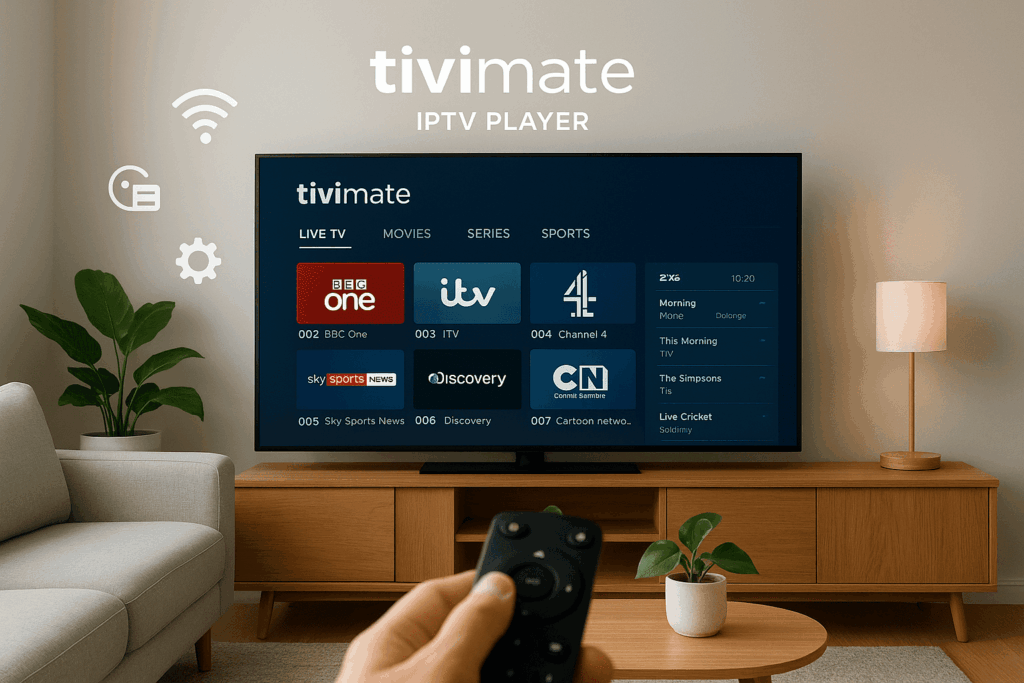
Ready to take your IPTV experience to the next level? Try Flixivo, a reliable IPTV service that works seamlessly with TiviMate IPTV Player. Add your playlist in seconds, enjoy live TV, movies, and series with minimal buffering, and explore the full power of TiviMate’s features.
Get started with Flixivo today and turn your smart TV or Firestick into a complete entertainment hub!
 English
  Dutch
Dutch  French
  German
  Spanish